Student GIS Projects

I’ve been teaching the Introduction to Geographic Information Systems (GIS) class in the Earth, Environmental, and Sustainability Sciences (EESS) Department for about 11 years. Suresh Muthukrishnan (department chair) also teaches the course. I’ve learned a ton from him. Here are some things I really enjoy about teaching the course:

House flipping hotspots near the Cincinnati Streetcar route. An example map from student Charlotte Moore.
  • Interdisciplinary Nature – Students from across campus take the course. Of course, there are lots of EESS majors. However, even those projects run the gamut. Projects like geologic mapping, landslide risk, sustainable farming, and even mapping data from GPS collars on mountain lions. But students of history, economics, sociology, computer science, business, and music also come up with some great projects.
  • The Opportunity to Learn – Every semester, students will come up with novel questions and methods. I think my typical response is, “I haven’t done that before, but I know it’s possible. Let’s figure it out together.” So I learn something new about GIS, as well as all the topics above, each time I teach.
  • Community Connections – Many of the projects involve community partners–folks like the Greer Police Department, Upstate Warrior Solution (which serves veterans), Greenlink (our public transportation department), local land conservation non-profits, the forestry department, and community associations. Our first deep partnership involved mapping streetlights, which I’ll talk about in another post.
  • Working with Our Post-Baccalaureate Fellows (postbacs) – I’m grateful to get to work with two recent Furman graduates who are on our team. Catherine Lippert (Sustainability Science) and Sam Hayes (History and Politics and International Affairs) are an integral part of teaching the course. They have serious GIS chops and roll up their sleeves to help the students with projects, every step of the way.
  • Project-Based Learning – The course involves a semester-long project. It’s a real challenge to teach GIS principles, create meaningful labs, AND support students as they use these concepts and tools to apply what they’ve learned to address a real-world problem. Every semester I think, “We took on too much. This isn’t going to happen.” But it always comes together. Here’s the syllabus for the class.
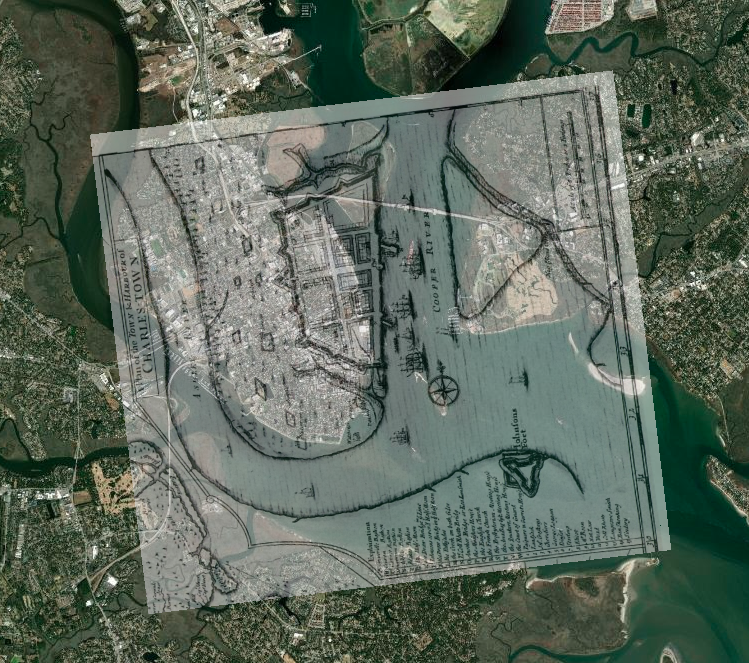
An historic, georeferenced map of Charleston Harbor (1711). From a student project by Kylie Gambrill.

Here are some examples from a recent class. I don’t want to make it seem like I’m taking credit for these. The students did the work. Catherine, Sam, and I were teammates. However, the examples are illustrative of the range of projects that are possible. The projects are easier to share, now that we have switched the delivery format from poster presentations to StoryMaps.

Charlotte Moore: Transit-Motivated Gentrification: An analysis of gentrification in Over-the-Rhine, especially as a result of the Cincinnati Streetcar.

Caroline Vickery: Contextualizing Upstate Farms: A preliminary examination of land use and nutrient loading for small farms in the Upstate of South Carolina.

Kylie Gambrill: Understanding Change: The Charleston Harbor — Our perceptions of the environment around us depend upon the cultural context we find ourselves in.

Bennett Dean: Affordable housing and public transportation in Greenville.

 Chloe Sandifer-Stech: Recommendations for green space around Enoree Career Center: A study of the influence of tree density on carbon storage.

Jake Gerardi: Land Sparing/Sharing Impacts on Birds: Assessing habitat quality of southern bird species using ecological principles in Greenville watersheds.

Madison Eichhorn: Affordable Housing & Good Jobs – An evaluation of proximity, density, and availability of affordable housing and employment.

Austyn Feigenbaum: Boating Safety Zones and Florida Manatees: An investigation on the relationship between manatee death rates and boating safety zones along the coast of Florida.

I hope you’ve enjoyed seeing the range of student projects and learning more. It’s a pleasure to see all the hard work result in such great studies and stories.
Reflecting on Projects

Partnership with United Way of Greenville County: Neighborhood Assessment

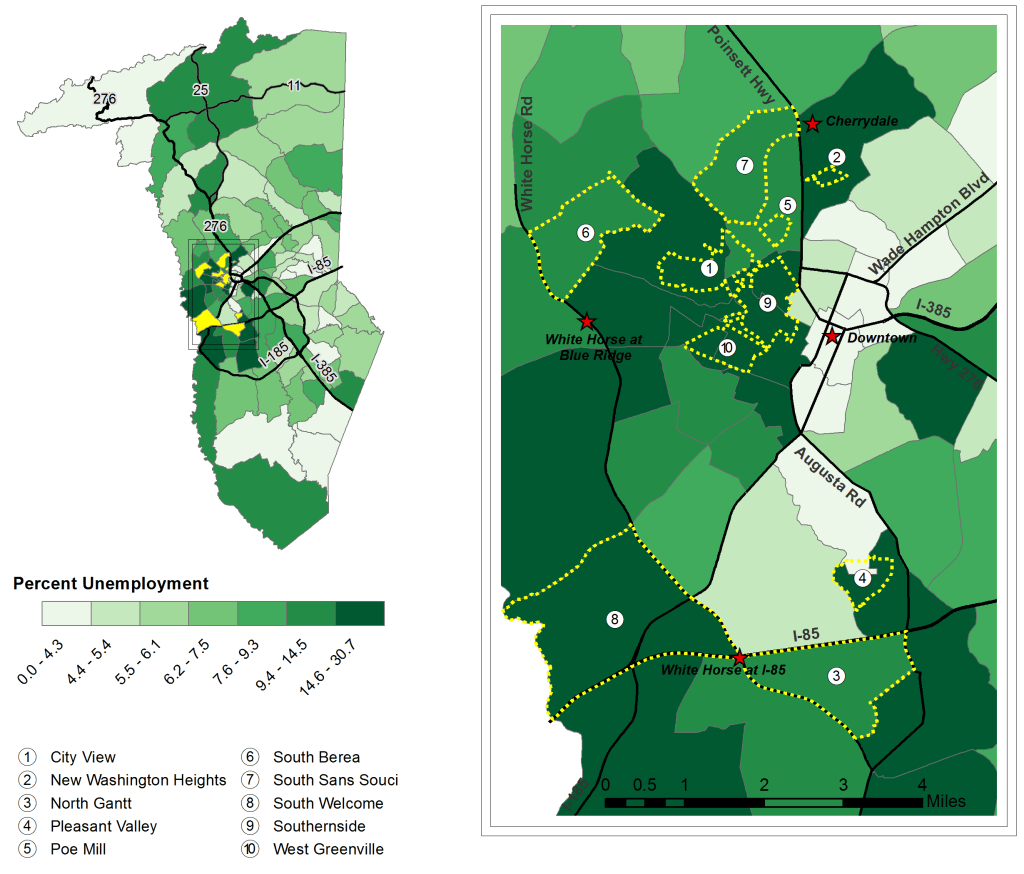
Percent Unemployment: Greenville County and Ten Focus Neighborhoods.

I’ve been going through the course, Visualization for Clarity, on the FlowingData website. I’ve learned a great deal and decided to use it as an opportunity to go back through previous work and projects to analyze what we did right and what we could have done differently. 

  1. Firstly, I wanted to put highlights from the projects in one place. Some of these resources are difficult to find. So I wanted to pull them together in one place. So that’s a question for action: How do we make our work easier to find, so that the information can be leveraged for positive change? See the full report and executive summary for details on this project.
  2. I hope this exercise will prompt me to reflect on our work. I say ‘our’ because almost all of the work I’ve done has been with teams. Although I like to hole up and make maps and other visualizations myself (usually playing punk music and drinking homemade cold-brew coffee), I love working in teams. Part of it is selfish; I just learn so much by working with others.
  3. The last reason is professional. It’s difficult to share this kind of work in a CV/Resume. I want to get it out there–get feedback from a broader audience and connect more deeply with a GIS / DataViz community.

So here’s one from the recent past.

Project Title: Focused Needs and Assets Assessment – Greenville County, SC

Team members: See the list in the report. It was a big, team effort. 

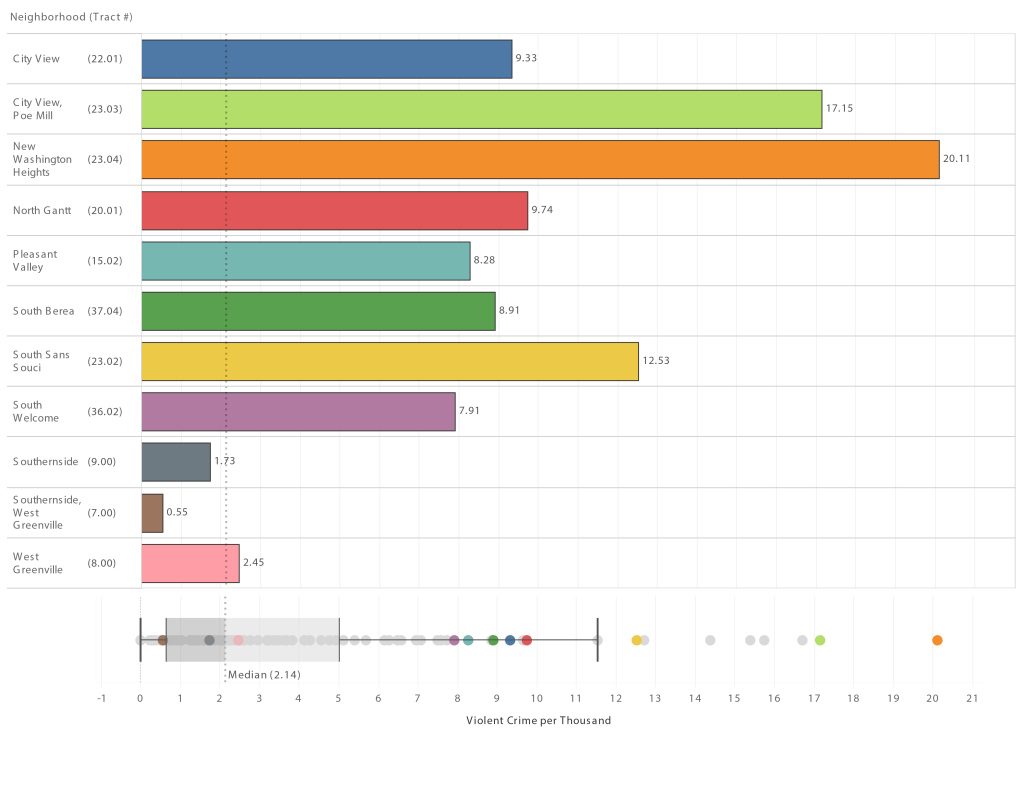
Violent Crime in Ten Study Neighborhoods: Data from Greenville Police Department.

Summary: 

  • We focused on 10 neighborhoods with the highest family poverty rates in Greenville County. This focus was determined in collaboration with the United Way of Greenville County. 
  • We then sent teams of qualitative researchers, including students, into these neighborhoods to better understand assets and needs. That team met with 268 neighborhood stakeholders! We wanted to make sure to focus on assets just as much, or more, than needs. As you can probably guess, these varied greatly from neighborhood to neighborhood.
  • Our team mapped and graphed 35 measures of community well-being, highlighting each of the ten neighborhoods. 
  • Because of United Way’s focus on a cycle of success, particularly third-grade reading scores, our team re-aggregated the data to local school attendance zones to analyze explanatory variables for reading scores. See the full report or executive summary. The most interesting one to me was the potential role in communities with high alternative workshift rates (e.g., second-shift, third-shift, etc.). Professor John Quinn took the lead on this analysis. 

Tools used for visualizations, maps, and modeling:

  • ArcGIS Desktop
  • QGIS
  • R
  • Tableau
Financial Measures Broken Down by Neighborhood and Tract Number. Darker Green Shows Higher Percentage or Dollar Amount.

Visualization Reflection:

The good

  • I think we did a great job with maps and visuals, e.g., color choices, visual hierarchy, highlighting local landmarks, and other map-making best practices.
  • I also like the tables for the measures of well-being (see above). Sometimes tables are better than a fancy visualization. This is a good example. The color shading in the table really draws the eye towards certain neighborhoods.
  • I really like the asset and need visualizations in the executive summary (see below). This was Dr. Matt Cohen’s idea. We implemented that with Tableau.
Community Assets. Identified by Community Members and Stakeholders.

Opportunities for Improvement:

  • Interactivity – It drives me a bit crazy when great information isn’t interactive. We locked this into PDF format for the report. In our defense, we had limited time and budget, so we decided not to pursue interactive platforms like Tableau Server and ArcGIS Online. We fixed that in future projects. How cool would it have been to have to be able to hover over a particular neighborhood and see it highlighted in our box and whisker plot? I could do that in Tableau Desktop, but it would have been helpful for our stakeholders to do that too. 
  • Updatability – We put a lot of work into pulling data in tabular form, cleaning it up, re-aggregating it to non-standard boundaries. Now the data is stale. We need to take a step back and explore ways to develop frameworks that allow us to “slide” new data underneath (like new ACS estimates) and have maps and graphs auto-update.

An unplanned semester online:

Like my students, I’m struggling with the shift to online. I’ve used screencasts (short recorded lectures) previously, but I’m re-evaluating. I like them because they are a compact way of sharing content and context. Most are in the 7 – 20 minute range. But here are the challenges:

1. Time to produce – I know it’s hard to believe, but this one took me about 4 hours to a) get the data wrangled 2) put together an outline 3) record, and 4) edit. So I, either suck at this, or my experience is indicative of other instructors’ experience. I’m open to the former.

https://furman.box.com/s/no1ui4cwbwnrud6vuqm02q10kk1zrppm

2. Time in-class vs. online lecture – This would have taken 2x the time to discuss in class. The presentation wouldn’t have been as tight, and student questions/discussions would have extended the time. But is that “time gain” a good thing, or indicative that something is missing online?

3. Lecturing to no one – You might hear it in my voice, but it’s hard to lecture to an imagined audience. I try to envision my students, and I’ve even stood up to produce the screencast with more energy, but recreating the in-person experience is tough. I miss them.

4. The long term – I think I can use these screencasts, which are primarily information dissemination and demonstrations, to make space in my class for more interaction and discussion. However, that’s going to have to happen in person, or it’s one more thing to figure out how to do online. Zoom breakout groups are great, but are they the same thing as in-person discussions?

Some questions:

  1. Do you find that developing screencasts is worth the time?
  2. A similar, live lecture via Zoom is going to take longer, but is the interactivity worth it?
  3. How do you use short screencasts to make room for my interactivity during synchronous meetings, whether online or in-person?
  4. What went well online this semester? What were the challenges?


GIS and Social Justice

At a recent faculty gathering on community engagement, I was asked to provide some examples of how Geographic Information Systems (GIS) is being used to support different social justice initiatives. While there are many examples, I didn’t have much time to share, so I highlighted just a few compelling examples, which are shown below.

If you’re interested in learning more about GIS and social justice, these resources are a great place to start, although I find the inequity that the maps reveal to be very disheartening.

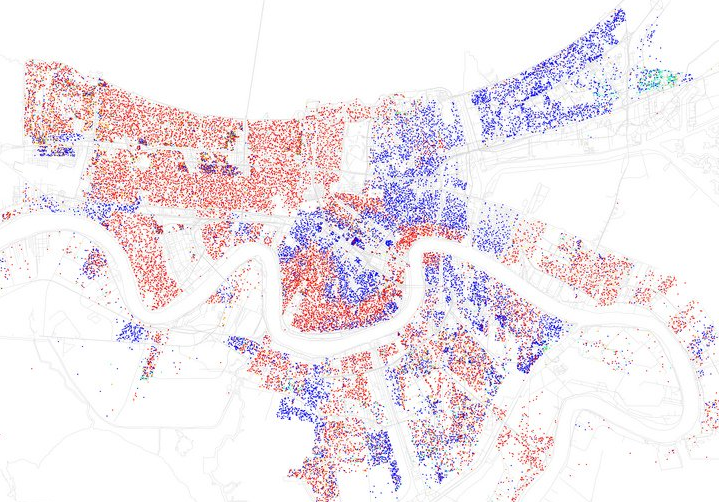
New Orleans
New Orleans, LA from Business Insider – http://www.businessinsider.com/most-segregated-cities-census-maps-2013-4?op=1

  1. The Revolution Will Be Mapped – This article gives an overview and describes some recent cases in which maps played a key role in highlighting discriminatory practices in the provision of public services.
  2. Redlining Maps –If you click on an area, especially those in red, you can see the disturbing (stunning, actually) area descriptions–circa 1930.
  3. Million Dollar Blocks – NPR highlighted the Justice Mapping Center’s work on visually representing incarceration rates and costs. Million dollar blocks are “areas where more than $1 million is being spent annually to incarcerate the residents of a single census block.” The maps are being used to identify areas for establishment of re-entry programs. You can check out data for Greenville County by zip code and census block here. Click on the state, then the county for details.
  4. Maps of Highly Segregated Cities – Each map provides a dissimilarity index. “A score above 60 on the dissimilarity index is considered very high segregation.” The symbology is very powerful. For New Orleans, you can clearly see the high elevation area along the river that geographer Richard Campanella refers to as the “white teapot.”
  5. Underbounding – I happened upon this term while doing a little research for the session. This is a practice by which certain groups (usually poor minorities) are excluded from annexation and associated services.
  6. Dividing Lines: School Districts in the US – This map shows how current educational funding practices limit fair access.
  7. Social Explorer – Our library is currently evaluating a subscription to Social Explorer, which should make it much easier to use the browser to map demographic data going all the way back to the 1790 Census. No desktop software required.

Transparency as the Catalyst to Transformation

I’m excited to host my first guest blog by colleague Diane Boyd, Associate Director for Furman’s Center for Teaching and Learning as she reflects on our trip with StudioLab consultants to ThatCamp Pedagogy.

Diane’s post:

THATCamp Pedagogy, Vassar College October 15-16

This was our first THATCamp, and many of us on the road to Poughkeepsie (including Mike Winiski, and student consultants Lacey Brantley, Shanda Edwards, and Boone Pilkington) from Furman’s Center for Teaching and Learning and StudioLab had some trepidation about creating an agenda for the meeting “on the fly” during the first session on Saturday morning.  Added to that low-level anxiety was wondering how to prepare for any impromptu presentations we might give at the conference or during “Dork Shorts.”

I was delighted at how well Matt Schultz orchestrated the schedule building on Saturday morning.  Participants suggested topics online before the meeting (and during our agenda making session) and those people were to take ownership of the session during the conference.  Logistically this worked well, except when a person suggested two sessions that got scheduled simultaneously (as was Mike’s dilemma with “Distant Reading” and “Interpreting Visualization”).  One suggestion: in some sessions it would be more effective to have a more deliberate matching mechanism.  That is, create the option for suggesting sessions without leading them:  people who suggest a session could request a co-facilitator/expert rather than become the session leader. I understand the non-hierarchical advantage to the current set up (which also promotes transparency!), but I also believe the current system prevented people who were genuinely curious about a topic from suggesting it (for fear that they would become intrepid leaders!)

Transparency, and in turn, transformation, emerged quickly as abiding conference themes. The BootCamps I attended provided ample time for brainstorming with fellow campers, and many transformative ideas for digital humanities projects were the result. In “Integrating Digital Projects into Undergraduate Courses” we focused on using audio recordings in a Latina Feminisms class.  The importance of “voice” for the professor made audio interviews a meaningful DH choice.  In “So Long, Lecture” another camper, also a student, talked about a prof who taught iambic pentameter by having her students walk to the beat.  Incorporating multiple senses as key to enduring cognition was useful to me as I plan a “Yoga in America” class where we engaged in daily physical practice a well as investigate the translation of traditional yoga to a Western, American lifestyle. Always our discussions began with the learning goals and then moved to the appropriate technology, if any, that would support the project.  Lacey, Boone, and Shanda agreed that it was transformative to “see behind the curtain”—watching professors struggle with the constraints of administrative demands while also attempting to build meaningful assignments that assist in the life long learning process.  And it was transformative for each of us to once again consider the transparency and integration of our roles at the Center for Teaching and Learning: we are at once teachers, learners, facilitators, experimenters, collaborators.  When we allow these roles to be fluid—when we take the risk to be transparent in our teaching, learning, and thinking—meaningful personal and professional  transformation are the inevitable result.

Focusing and Connecting Presentations with Pecha Kucha and VoiceThread

Pecha kucha (20 slides / 20 seconds per slide) is a creative way to inspire focused presentations using constraints.  Here are a couple of great examples:

http://www.pecha-kucha.org/presentations/88
http://www.pecha-kucha.org/presentations/200

I’ve used this format for student presentations in class and have been really pleased with outcome; however, the way I designed the assignment (the first time), didn’t help us connect ideas from the various presentations very effectively.  This time, I explored VoiceThread’s potential to help us make these connections, mostly outside of class.  For the most part, I’d consider the experiment a success, but our class has some suggestions to make the interface more useful.

voicethread

A VoiceThread, surrounded by comments.

First some background about the pecha kucha assignment: My goal was for students to gain a better understanding of the major geological processes that are thought to have shaped the Martian landscape, as well as for them to gain an even greater appreciation for the tentative and progressive nature of scientific knowledge.  Mars is definitely a good case study for the latter, as many theories exist for the development various landforms. Ideas have shifted over time, as we sift through and attempt to make sense of mountains of data from various landers (Go Phoenix!), rovers, and orbiters.   In this case, pecha kucha seemed to nudge presenters (myself included) towards a focus on developing concepts with carefully-chosen supporting details, rather than a relentless stream of disconnected facts. After I volunteered to deliver a pecha-kucha at last year’s NITLE summit, I realized just how hard it is to share an idea and advocate for action in six minutes and forty seconds.  I agonized over every word, and spent more time preparing my pecha kucha (the live versions carry much more energy) than I have on 90 minute workshops.

After the live presentations in class, students recorded their pecha kuchas and posted them to a VoiceThread group, visible only to our class.   Here’s the assignment:

Please provide a voice thread comment on 4 posted pecha kuchas (other than your own).  If a presentation has 4 or 5 comments already, find another one to comment on.  Watch the pecha kucha again before commenting.  Please provide insightful comments that extend and deepen the conversation.  Some prompts that might help.

1) I’m still a little unclear about .  It would help me to know more about ____________________ or get clarification about ______________________.

2) This seems similar to the features we discussed on _______________________ because ______________________.

3) If I’m understanding _____________ correctly then it means _______________________ (state your interpretation here).  Could it also mean that ________________________?

4) It seems that knowing more about _____________________ would really help us understand ___________________ better because ________________________.

5) A good analogy to help me remember _____________________ process is _____________________.

If you’re familiar with the book They Say, I Say, you’ll notice I borrowed the idea of using templates to help guide student responses.  Okay, so this is the second constraint in the assignment.  I’m all about student freedom.  Really!  I just like the creativity and focus that these particular limits inspired. I was really, really impressed with the depth and quality of student conversation, as they asked questions and identified links between presentations.   I think the combination of student creativity, the VoiceThread interface, and the template above facilitated the discussion.

As the screenshot above shows, VoiceThread comments surround the main presentation, which can be an image, text, or  movie.  Comments can take several forms:

  1. Text comments;
  2. Voice – recorded through the computer, or students can even use their phone.  Students enter their phone numbers on the site (see below), and VoiceThread calls the student and records their comments, automatically posting them to the site;
  3. Video – If students have a web cam (which is more common these days), they can provide a video comment.

call

Call-in comment feature

The advantages:

  1. The phone option is great.  If a student is having trouble with their computer microphone, they can just dial in.
  2. Students can embed their comment at a particular point in the original presentation.  So if there’s a question about slide 11, you can add your question at the appropriate point in that slide.
  3. Every commenter can annotate the original presentation (called Doodling).  This is great for visual media—much better than a threaded discussion forum in this regards.  Check out the fun Wile E. Coyote example.
  4. In many cases, hearing the student inflection as they posed questions really helped me discern where we needed to spend some additional time in class.  Picking that out in a text-based discussion would have been more difficult.
  5. I was able to easily import a csv version of my roster, which made setting up the class simple.

The disadvantages:

  1. The cost is $99 for a single-instructor, higher ed license.  It’s pretty reasonable, but each student only gets 3 minutes of phone time; then you have to add more virtual coins; then you have to allocate those extra minutes to each student.  Can’t I just get a pool of minutes for all students, VoiceThread?  Better yet, at $99, maybe we should get more minutes included in the package deal?
  2. We ran into problems in which the main presentation got out of sync with a student comment.  For example, Fred (a hypothetical student) was highlighting a crater on the 4th slide of the main presentation to ask a question. But the comment showed slide two when I viewed his comment.  I could refresh the browser to solve the problem, but that was kind of a pain.
  3. You can’t nest comments.  Threaded comments are a must!  When students replied to a question, their comment had to include information to hook their response to a particular question—very inefficient. This will be a much better interface when threaded commenting is added.
  4. I wasn’t able to delete student posts.  They had to do that themselves.  The admin needs that capability.

All-in-all, we thought the interface helped to extend a complex conversation beyond the walls of the classroom.  With a more appropriate pricing model, threaded discussions, and a few bug fixes, this tool can really enhance discussion around rich media when discussion boards tend to fall flat.

Are you using VoiceThread? Pecha Kuchas?  Response templates?  How’s it going?

Visualizing the World – Wow!

This is a really powerful tool for viewing global statistics that might be useful for class.  The visualizations in Hans Rosling’s presentation  are pretty amazing.

Motion Map

The tool Rosling uses in the presentation is available online (along with his blog).  It took me a little while to figure it out how to use it, but experimentation with the maps and charts, along with the video tutorial, really helped me realize how much is here.

Indicators include health, economic, education, environmental, and more data from the UN.

The site also provides information about how you can use Google Spreadsheets to make your own motion charts.  I experimented, and the process is fairly straight-forward for charts but doesn’t include the mapping piece, which is available for the UN data on Rosling’s site.

oil_consumption.jpg

Total Oil Consumption – Let’s get on those bikes or carpool America 🙂

Campus Technology Award

Our project using Google Earth to connect Boston, NY, and Greenville in Lloyd Benson’s Urban History class won an Annual Campus Technology Award. Check it out!

Here’s a little bit more info on the project that I put together for a NITLE conference this spring.

 google_earth_tour.gif

Project FAQs

It’s amazing how quickly things change. Picasa and Flickr now automatically put geocoded images on the map. For Flickr you have to make sure this is set to ‘yes’ in the privacy and permissions section of your profile.

flickr

Here’s an example of an image in Picasa that is automatically placed on the map. I took it with an iPAQ with built-in GPS. I almost walked right through the web when getting out of my car. That would have been interesting! It reminds me of the time I put my kayak on my head to carry it, and a big spider that had set up camp started falling towards my face. I closed my mouth just in time!

spider

Keeping Score

I remember my uncle Paul and dad teaching me to keep score as a kid. Somewhere I still have a score card from a Reds game I attended with my dad. Pete Rose was deep into his pursuit of Joe DiMaggio’s hitting streak and kept that streak alive that night. Tonight I passed along the tradition to my daughters who seemed to enjoy it, as long as we switched each inning. As you can see, the Greenville Drive turned up the heat late in the game for a great comeback. This seems like a classic example of information visualization in action.  You can see the offensive flow of the game (for the home team, anyway) pretty quickly.  Yes, Field of Dreams is one of my favorite movies. Same with Bull Durham.

score

Concept Map Software Demo – CmapTools

CMapTools is concept map software which is available free for educational use. I created a quick demo of some of the main features. I especially like the support for mulitmedia objects.

super hero small

Oops! See this 60 sec correction / tip for saving space in your concept map.

Of course, there are many academic uses, but the above superhero example is kind of a fun intro (see more detailed, finished super hero map here). For example, the Science Education Resource Center (SERC) at Carleton College has some great information on using concept mapping in the geosciences.